

 About MIT App Inventor App Inventor for Android is an open-source web application originally provided by Google, and now maintained by the Massachusetts Institute of Technology ( MIT).
It allows newcomers to computer programming to create software applications for the Android operating system (OS)
MIT App Inventor supports a worldwide community of nearly 3 million users representing 195 countries worldwide. The tools 100,000 active weekly users have built more than 7 million Android apps.
Also Read: Get source code of any Android App
 Some history about the MIT App Inventor
There is interesting history behind App Inventor as you will find in the related entries in Wikipedia. With Google support, MIT made its first version available as MIT App Inventor (classic) in March 2012.
Some history about the MIT App Inventor
There is interesting history behind App Inventor as you will find in the related entries in Wikipedia. With Google support, MIT made its first version available as MIT App Inventor (classic) in March 2012.
The latest version is called MIT App Inventor 2, and was made available to developers by MIT in December 2013. The major difference is that App Inventor 2 now runs entirely from the browser.
There have also been numerous improvements to the user experience, as well as aesthetic alterations.ck
Getting started with MIT App Inventor 2
Since the MIT App Inventor is cloud based, you need to first navigate to the AI 2 link in the Web browser. Note: AI 2 does not support Internet Explorer and instead recommends Chrome or Firefox.
The AI 2 link is http://ai2.appinventor.mit.edu/
Then, log in using your Google account to get started. You will have the IDE environment available ; select “Start new project”.
Once you have done that, you get the dialogue box , in which you have to enter the name of the project. Once you enter the name and press “OK”, you get the GUI where you can see its different elements explained, along with the numbers
For those of you who have worked with a GUI builder and an event handler based code execution environment, the App Inventor 2 offers the same features for Android app development.
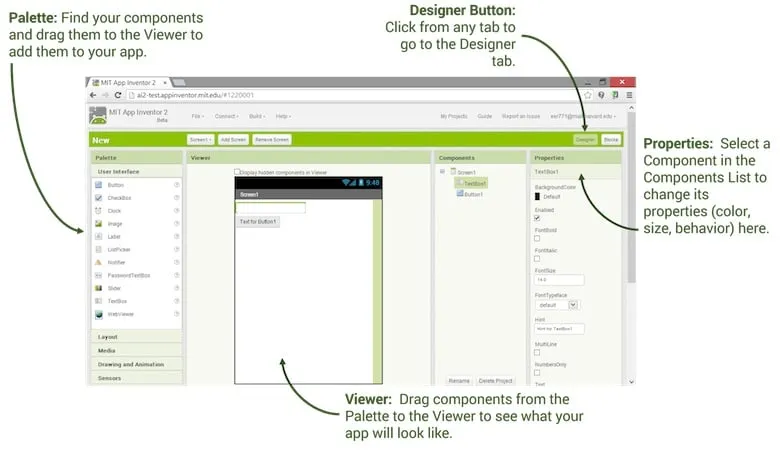 The following elements are numbered.
1. Project name: The name of the project is visible here.
The following elements are numbered.
1. Project name: The name of the project is visible here.
2. Designer/Blocks: Here, the information on which view is active is shown. The button that is shown as pressed is actually the active view. In this case, the view is in “designer” mode (more about the same in the next section).
3. User Interface: In the palette, all GUI visible components, i.e., those that are made visible on a screen in your app and are associated with some functionality, are present under User Interface.
4. Screen name: Your app can have multiple screens. The default screen, which is named screen 1, is visible here. You can also see the same under the “Components” tab (more on this later).
5. App name: By default, the “App name” is the same as the project name that you have given. You can change the app name by changing this attribute under “Properties”.
6. Media: Any Android app should have diverse and rich media capabilities. You will find widgets or components related to “Media” under this section (more on this later).
The “Designer view”
Basically, in the “Designer view” you can select the GUI elements that should be visible on your screen. You can also determine the properties that could affect their display and their behaviour using the attributes available under “Properties”. For our app, we will use a button which, when pressed, will do our bidding and help us code the required functionality. After set up the “Designer view” with elements that we wanted in our screen. We will now go to the “Blocks view” in the next section and ensure we get the required behaviour to complete the app.
The ” Blocks view”
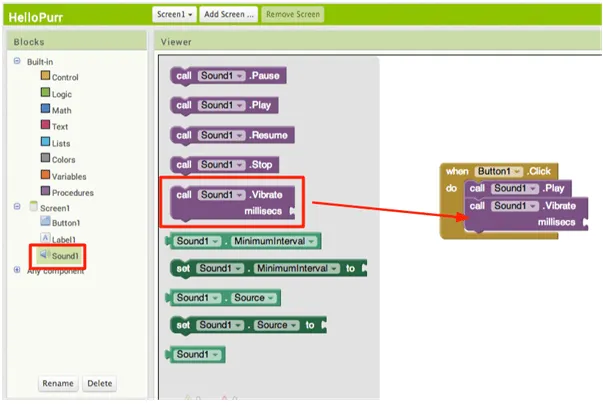
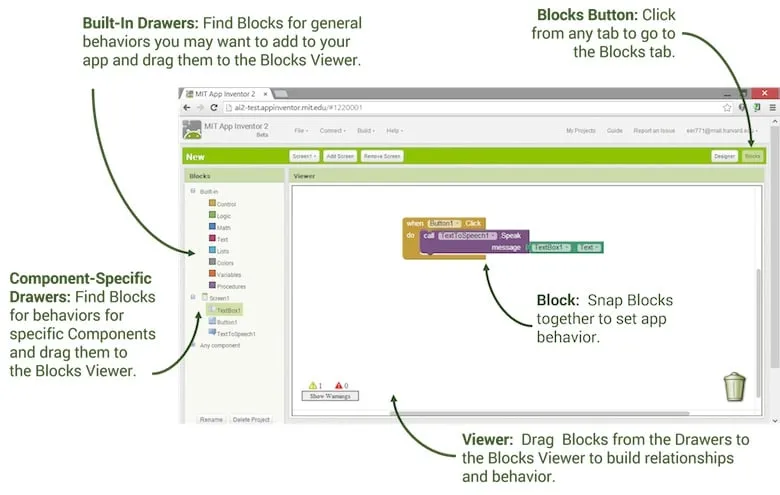
To get into the Blocks view , click on the “Blocks” button. The “Blocks view” basically allows you to code for events of interest for your app. Here are some generic concepts about “Blocks”:
- The AI 2 interface basically has a philosophy of coding every single item through blocks which could be independent or interconnected (more on this later).
- A block could be a self-sufficient item by itself or it could be a value, a variable or a segment that supplies a result or a procedure.
- Blocks that have a blue box at the top left are configurable and allow you to change their structure.
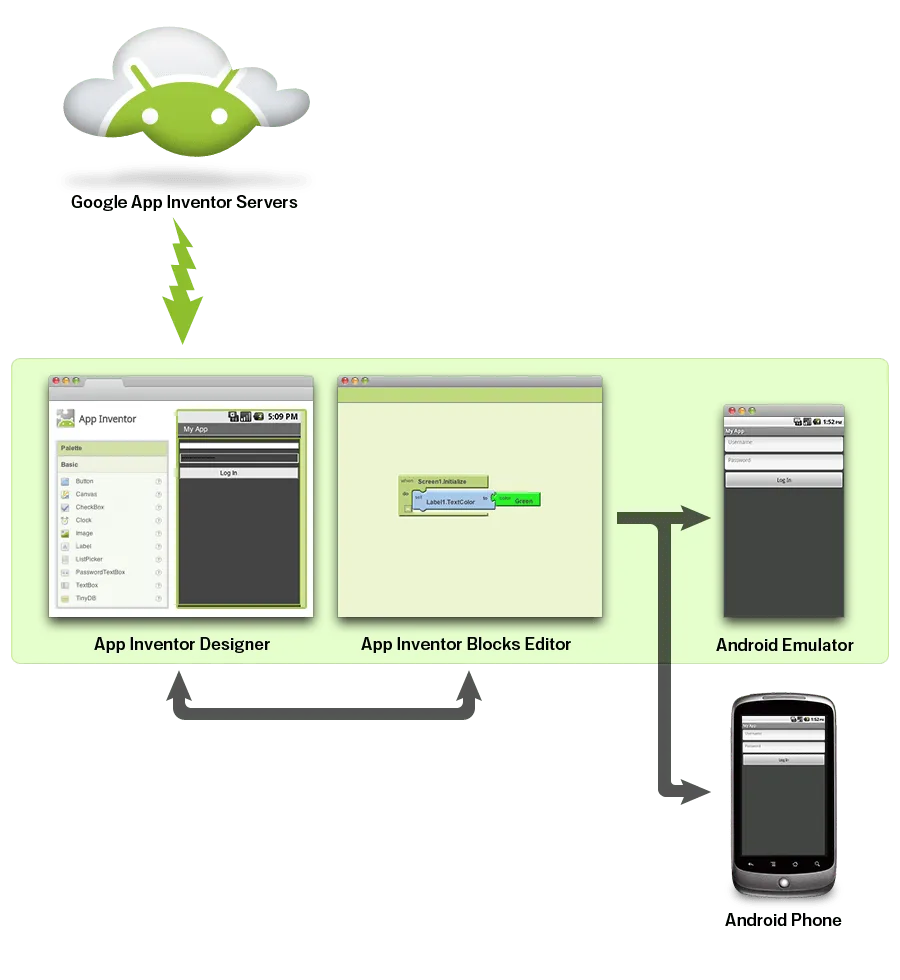
Let us take a brief break here to do some testing of the work done so far. The most important advantage of such an environment is that it is very easy to continually test the application developed so far. Testing can be done using the AI 2 supplied emulator environment or by connecting to an Android smartphone. Let us start with the AI 2 supplied emulator first.
Test the app using an emulator
To test using an emulator, the emulator has to be installed on the computer in which you are developing the app. Once you have set it up on your computer, you should be able to connect to the same.
Now you should see an emulator running on your system with the Android icon
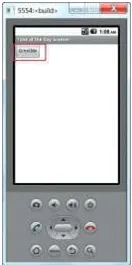
If all goes well, you should be able to see a screen
Test the app using an Android phone Testing with your Android phone is a lot easier if your phone has Wi-Fi and is connected wirelessly to the same network as your computer. Do follow the instructions for setting this up as given online. Once set up, to connect to the Android phone you have to launch the MIT App Inventor 2 Companion app in your phone.
Then use Connect->AI Companion
Doing so will show you a QR code and a 6-digit alphabetical code. You should either scan the QR code from your phone camera or enter the 6-digit code to connect to your App. You can then see the app running on your phone and should be able to hear the congratulatory message on your phone.
A few more notes are provided below:
- There are warnings and error counts shown all the time in the blocks view. Make sure you keep checking this to understand if something is going wrong.
- If you click on any item from the built-in palette by mistake, removing the same can be done by simply selecting the block and “deleting” it using the Delete key. You can also drag it into the dustbin shown in the GUI and drop it when its cover opens.
- Calling TextToSpeech1.Speak multiple times back-to-back produced the speech only for the last invocation during my attempts. Hence, I went for a simpler join to get multiple messages in.
- Testing our app for different times of the day is not easy without some innovation. You could think of changing the clock in the computer and then testing it using the emulator.
- There is a bit of learning to be done to get logical code done in the blocks editor, especially if you have become used to writing code using a text editor. Once you cut your teeth with a few applications, you should be fine to try out more. Being patient initially could help you with this.
- The project resides in the cloud all the time. When you are not connected to the Internet, you may be able to make changes to your design blocks to test your changes. But you will not be able to change to Designer view without being connected and, once you do so, you may be surprised to find your older blocks changes have not been saved. So it is recommended to make a local copy of the app; it will save as an .aia file on your local drive.
- Also, it seems that the AI 2 interface still supports the earlier Android look and feel. There may be tools which could upgrade your Android app to the latest look and feel. Try them out.
- There are also ways by which you can publish your app in the AI 2 store and also in the Android Play Store.
Capabilities App Inventor’s capabilities include:
- Access to most of the phone’s functionality: phone calls, SMS texting, sensors for location, orientation, and acceleration, text-to-speech and speech recognition, sound, video.
- The ability to invoke other apps, with the Activity Starter component
- Programming control just as with a textual language. There are blocks for conditionals (if, if else), for each, and while, and a fairly comprehensive list of math and logic blocks.
- Database access, both on the device and on the web. So you can save data persistently, and with a web database share data amongst phones.
- Access to web information sources (APIs)— you can bring in data from Facebook, Amazon, etc. See limitations below.
Limitations
App Inventor has the following limitations in terms of the apps you can build:
- Limited UIs. The user interface builder has improved but is still a bit buggy and limited, so you can’t build any user interface. For instance, you can’t create apps with multiple screens and handling orientation changes has some glitches. These problems are not fundamental to the design of App Inventor and will soon be fixed.
- Limited Access to the device. There are not yet components for all the data and functionality of the phone. For instance, you can’t save and retrieve files from the file system and you have only limited access to the contact list (e.g., you cannot create groups).
- Limited Access to Web. You can only access APIs that follow a particular protocol (App-Inventor-compatible APIs). So if you want to get data from the web, you’ll need to program or have a programmer create an App-Inventor-Compliant API that wraps an existing API.
- No polymorphic components. Function blocks are tied to specific components, so there is no way to call functions on a generic component. For instance, if you create a procedure Move XY, it has to be tied to a specific image sprite, not a general image sprite.
- Limited access to the Android Market. The apps (.apk files) generated by App Inventor lack the required configuration for direct inclusion in the market. However, there is now a workaround for market publication.